Birthday
Happy birthday, [name]! Hope today brings you plenty of [something they enjoy]. Wishing you a wonderful year ahead.
Remember the person as well as the date
Use WAPlus Ultra on Android to prepare a personal birthday or anniversary message and set its reminder. When it is due, open the assisted-send prompt, check the recipient and wording, and tap Send in WhatsApp yourself.
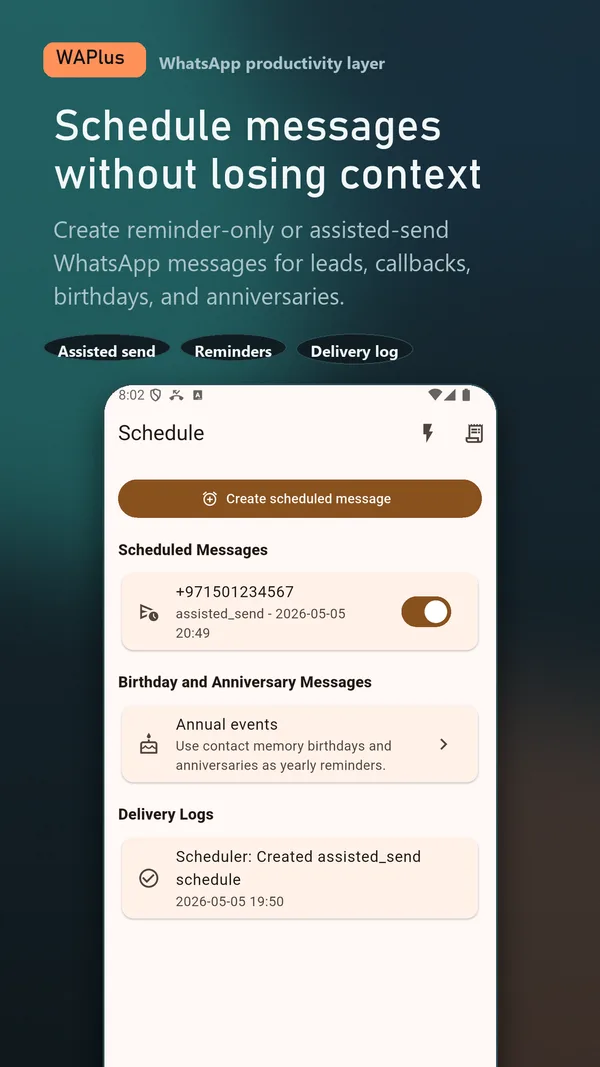
Install WAPlus Ultra on Android, then set up the feature you need. Your installed messenger remains part of the workflow.
Add the birthday or anniversary to the contact memory or create a scheduled message for the date. Confirm the number and the reminder time on your phone.
Prepare the message while you have time to make it thoughtful. Use a saved template as a starting point, then replace placeholders and add a detail about the person.
Keep the phone on and allow the reminder to run. Open the due notification and complete the assisted send in your installed WhatsApp app. Review recurring event dates each year.
Copy a starting point, replace every bracketed detail, and check the final message before sending.
Happy birthday, [name]! Hope today brings you plenty of [something they enjoy]. Wishing you a wonderful year ahead.
Happy anniversary, [names]! Wishing you another lovely year together. Hope you have something special planned for today.
WAPlus asks Android to show a local reminder. Your phone settings and the apps involved still affect when you see it and can send.
An assisted birthday schedule does not silently send while you sleep or while your phone is off. You must see the reminder, open WhatsApp, and tap Send. Use an ordinary advance reminder when you cannot be available at the intended time.
WAPlus Ultra uses assisted sending: it prepares the message and reminds you at the selected time, then you tap Send in WhatsApp. It does not promise unattended midnight delivery.
WAPlus includes annual-event reminders using contact-memory birthdays and anniversaries. Review the date, recipient, wording, and reminder settings before relying on the next event.
No. The phone must be on and Android must allow the reminder to run. The final message also needs your action in WhatsApp and a working connection.
Have a workflow in mind? Send a feature request to the developer.
Available for Android only
Keep your installed WhatsApp app. Add the tools that help you follow through.